 E-book Registration

General Queries
What does the Student Package Contain?
Each Student Package incorporates an electronic syllabus book and a hard copy A3 workbook covering the complete syllabus.
As standard all e-books now include free access to our online e-books and a free download of the e-book for offline use. For a unique learning experience use the e-book in conjunction with the workbook.
You can visit our shop to see detailed information for each package.
How long will delivery take?
Most orders are dispatched within 24 hours and delivered within 2-4 working days from the time of ordering.
Some schools use Student Group Orders - Each student orders and pays online using a school discount code to qualify for free delivery. These orders are grouped together and delivered to the school in one shipment on a date specified by the teacher.
Can I buy the book in a book shop?
Yes, the DCG and TG Students Packages are currently available in a number of local retailers.
Check out the stockist map here to find your local retailer. Stock may vary depending on demand, please contact individual retailers or DCG Solutions to confirm stock.
School/teachers can contact DCG solutions to arrange stock in specific retailers.
How can Schools or Teachers place group orders?
Group/class orders can be placed by phone, email or online here. Orders are usually delivered within two working days. The Teacher/School can be invoiced for the order on delivery; payment can be made by cheque, postal order or electronic transfer. For debit/credit card payment please contact DCG Solutions.
Student Group Orders can also be arrange, with student group orders each student orders and pays for the Student Packages online using a school discount code to qualify for free delivery. Orders are grouped together
See more information or place a group order online.
I was given a school discount code by my teacher, how do I use this?
1) Hover over the Students Tab and choose Group Order Student Packages from the dropdown menu.
2) Choose the required package, click the red cart button and select Show Cart to check out.
3) In the space provided (above the credit card payment area) apply the given code to avail of free delivery and an additional discount.
4) All orders will be grouped together and delivery to the school in one shipment
How do I Register/Activate my E-book?
We have specific helps for e-books.
The links below contain Instructions, Frequently Asked Questions and Solutions to Common Problems & Error Messages for each type of E-book. Choose the e-book you need help with.
Can I use the E-book on a Mac/Table/I-pad?
The online version will work on all Macs, Tablets and I-Pads once an updated internet browser is installed.
Unfortunately the offline download version is windows specific and will not work on a Mac, Tablet or I-pad.
User Guides and Instructions
How to Access the Online E-books
How to Register an E-book from a Disc (Purchased before September 2015)
How to Download the Offline E-book (Purchased after September 2015)
How to Activate and Install an Offline E-book Download
The links below contain Instructions, Frequently Asked Questions and Solutions to Common Problems & Error Messages for each type of E-book. Click on the picture for help with a specific E-book.


Although we love hearing from users and are always happy to help, by checking the links above and the frequently asked questions you help us respond more quickly to questions that haven’t already been answered.
Instructions, Frequently Asked Questions and solutions to Error Message for all E-books can be found below.Click the pictures above for help with a specific type of E-book.
How Do I ... ?
How do I … Access the Online E-books? or Create an online Account?
To access the online E-books you must create an account using the Access Code provided on the first page of your workbook. Instructions with Pictures or Printable PDF Instructions.
1) Select the link Subscribe to Online E-book this is on the top left of the page.
2) Register for the Student Package you have purchased; Plane and Descriptive Geometry, Applied Graphic or Technical Graphics. An online form will appear.
3) Enter your details on the form, the user name and password will be needed to access the online e-book so make note of these.
At the bottom of the form apply the coupon supplied on the first page of your book, press Enter, the charge will reduce to €0. No payment method is required if you have already purchased a book/coupon code.
Press/click the Complete Registration button at the bottom of the form.
4) Log in using the My Account button (top left) and the user name and password chosen.
5) A new link will appear on the top tab called Online E-books, use the dropdown menu from Online E-books to access the student packages and different chapters
Note: Only one open session per user is permitted at a time, when leaving the site (or moving from one PC to another) please use the My Account button on the top left to log out.
If you forget to do this you will be able to log back in again after a period of inactivity.
How do I … Use the Access Codes supplied with my book?
You can use the access code to create an online E-book account. Instructions with Pictures or Printable PDF Instructions.
1) Select the link Subscribe to Online E-book this is on the top left of the page.
2) Select the Student Package you have purchased; Plane and Descriptive Geometry, Applied Graphic or Technical Graphics. On online form will appear.
3) Enter your details on the form, the user name and password will be needed to access the online e-book so make note of these.
At the bottom of the form apply the coupon supplied on the first page of your book, press enter, the charge will reduce to €0. No payment method is required if you have already purchased a book/coupon code.
Press the Process button to complete the Registration.
4) Log in using the My Account button (top left) and the user name and password chosen.
5) A new link will appear on the top tab called Online E-books, use the dropdown menu from Online E-books to access the student packages and different chapters.Note: Only one open session per user is permitted at a time, when leaving the site (or moving from one PC to another) please use the My Account button on the top left to log out.
If you forget to do this you will be able to log back in again after a period of inactivity.
Where do I find the Access Coupon Code?
If you have bought a DCG or TG Solutions book an E-book Access Coupon Code can be found just inside the front cover of the book. If a code is not printed within your book please contact DCG Solutions quoting your Disc ID, the Disc Id is the number printed on the surface of the Disc.
I have two or more books, how do I add extra E-books onto My Account?
If you have purchased two books, you can add extra books onto your Account by following the steps below. See Instructions with pictures here.
1) Click the My Account button on the top left of the screen, Log in to your account using the username and password chosen when you set up the account.
2) After you Log in a new Tab will appear called Online E-books. Use the dropdown menu from Online E-books to locate Add Extra E-books to Account.
Select the Package that corresponds to your books, an online form will appear.
3) Complete the Online Form.
At the bottom of the form apply the Access Code supplied on the first page of your book, press enter, the charge will reduce to €0.
Press the Complete registration button
4) Log out and back in to your account. The second E-book will now be seen under the Online E-book Tab.
Some text/graphics are missing from my online E-book why?
If graphics or text appears to be missing on your device/computer you will have to update the internet browser or download a new one. The online E-books work on the latest versions of all commonly used internet browsers.
How do I … Download the E-book for offline use?
See download instructions with pictures here.
You must have an online account to add the E-book Download. How do I Set Up my Online Account
1) Click the My Account button on the top left of the screen, Log in to your account using the username and password chosen when you set up the account.
2) After you Log in a new Tab will appear called Online E-books.
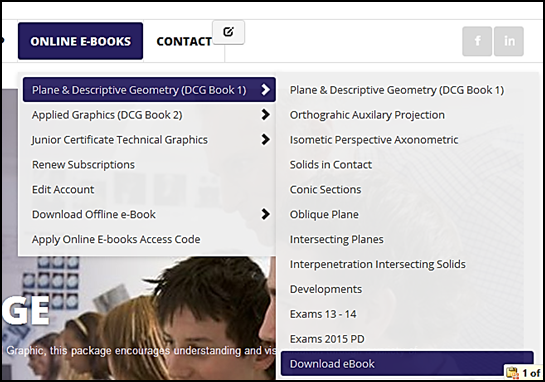
Use the dropdown menu from Online E-books to locate Download Offline E-books Registration.
One of more download links should be available, shown below. Click the Download eBook link to go to the download page.
Follow the Download and Activation Instructions, printable instructions can be found here.
A serial number will be sent to your email, choose Online Activation and use the serial number provided to activate the E-book.
3) If no download link is shown;
Click Download Offline E-books Registration.
Choose the Package that corresponds to your book, click the Register button (an online form will appear)
4) At the bottom of the form apply the Download Coupon Code supplied on the first page of your book
Press Enter, the charge will reduce to €0.
Press the Complete Registration button to finish.
5) Log out and back in to your account. The download link will now be seen at the bottom of the Chapter List and on the Download Offline E-book Menu Option. Click this link to go to the download page.
I have downloaded the E-book, how do I activate the program.
Full Instructions with pictures here.
Note - For multiple users on one PC please see the instructions here. Administrator Rights are needed to install the E-book. The administrator password is only needed for the initial install. Serial numbers can only be used once.
1) Download and Run the Setup.exe file and follow the steps to install the e-book.
Set Up files may be called SetUpTG.exe, SetUpPD.exe or SetUpAG.exe depending on which book you are using. Follow the on screen installation steps to install the e-book.
By default the E-book will be stored in your programs folder, for multiple users on one PC this will have to be changed, instructions here.
2) A desktop shortcut called E-bookPD, E-bookAG or E-bookTG should be created to access the E-book. Check is the Icon on your desktop.
If no shortcut is created navigate to the E-Book folder in your Program Files (Computer - Windows C Drive - Program Files).
Right click on E-book.exe and create a short cut, this shortcut can be pasted onto the desktop.
3) Double click the desktop icon to run the e-book, click Next and choose Online Activation. Enter your name and email, use the serial number supplied to your email address to activate the E-book.
Click Next, a Successful Activation notification should appear.
4) If Online Activation fails choose Email Activation; enter your name and email, use the serial number supplied to your email address.
Click Next to activate the E-book. Registration details will be copied to the clipboard, paste these into an email and send to
Online Activation is instant, please allow up to 2 working days for replies to email activation.
Notes
Each serial number can only be used once.
Unsure what email address you have use? Click the Online E-books Tab and choose User Profile or Edit Account to check the email address used.
If you have not received a serial number via email then check the email associated with your account is correct, you should also check any spam or junk folders.
If no internet is available on the destination PC, choose Email Activation.
Registration details will be copied to the clipboard; these can be pasted into a word document. Save the details onto a USB and send from any PC. An activation code will be returned via email. More details provided in the following solutions.
How do I … Register and Activate the Download Offline E-book on a Single User PC?
Full Instructions with pictures here.
Note - For multiple users on one PC please see the instructions here. Administrator Rights are needed to install the E-book. The administrator password is only needed for the initial install. Serial numbers can only be used once.
1) Download and Run the Setup.exe file and follow the steps to install the e-book.
Set Up files may be called SetUpTG.exe, SetUpPD.exe or SetUpAG.exe depending on which book you are using. Follow the on screen installation steps to install the e-book.
By default the E-book will be stored in your programs folder, for multiple users on one PC this will have to be changed, instructions here.
2) A desktop shortcut called E-bookPD, E-bookAG or E-bookTG should be created to access the E-book. Check is the Icon on your desktop.
If no shortcut is created navigate to the E-Book folder in your Program Files (Computer - Windows C Drive - Program Files).
Right click on E-book.exe and create a short cut, this shortcut can be pasted onto the desktop.
3) Double click the desktop icon to run the e-book, click Next and choose Online Activation. Enter your name and email, use the serial number supplied to your email address to activate the E-book.
Click Next, a Successful Activation notification should appear.
4) If Online Activation fails choose Email Activation; enter your name and email, use the serial number supplied to your email address.
Click Next to activate the E-book. Registration details will be copied to the clipboard, paste these into an email and send to
Online Activation is instant, please allow up to 2 working days for replies to email activation.
Notes
Each serial number can only be used once.
Unsure what email address you have use? Click the Online E-books Tab and choose User Profile or Edit Account to check the email address used.
If you have not received a serial number via email then check the email associated with your account is correct, you should also check any spam or junk folders.
If no internet is available on the destination PC, choose Email Activation.
Registration details will be copied to the clipboard; these can be pasted into a word document. Save the details onto a USB and send from any PC. An activation code will be returned via email. More details provided in the following solutions.
How do I … Set up the Offline E-book for Multiple Users On One PC or for a user who is not an administrator. ?
Full Instructions with pictures here.
Administrator Rights are needed to install the E-book. The administrator password is only needed for the initial install.
1) Create a new folder on the Windows C Drive (Can be found in Computer/MyComputer). Add a share/write permission for all users onto this Folder; Right Click on the folder - choose Properties - click the Sharing option - from the drop down menu choose share with everyone on this PC.
2) Log in to your account and Download the E-book. The download link is found at the bottom of the chapter list for each e-book.
3) Once downloaded run the Setup.exe (may also be SetUpPD, SetupAG or SetupTG). During the set up process the E-book will automatically install to the Programs Folder - this will have to be changed so the e-book installs to the shared folder.
In Destination Location choose Browse to select the new shared folder you have created. The E-book will install to this shared folder.
4) A desktop shortcut should be created. If no shortcut is created, navigate to the new shared folder you created previously.
Right Click on the corresponding E-book.exe file. You can create a short cut from E-book.exe onto the desktop, right click – choose Create Shortcut.
5) Double click the desktop icon to run the e-book, click Next and choose Online Activation.
Enter your name and email, use the serial number supplied to your email address to activate the E-book.
Click Next, a Successful Activation notification should appear.
6) If Online Activation fails choose Email Activation; enter your name and email, use the serial number supplied to your email address.
Click Next to activate the E-book.
Registration details will be copied to the clipboard, paste these into an email and send to
Online Activation is instant, please allow up to 2 working days for replies to email activation.
Notes
Each serial number can only be used once.
Unsure what email address you have use? Click the Online E-books Tab and choose User Profile or Edit Account to check the email address used.
If you have not received a serial number via email then check the email associated with your account is correct, you should also check any spam or junk folders.
If no internet is available on the destination PC, choose Email Activation.
Registration details will be copied to the clipboard; these can be pasted into a word document. Save the details onto a USB and send from any PC. An activation code will be returned via email. More details provided in the following solutions.
I do not have Internet on my PC, how can I download and install the e-book?
The file can be downloaded on any PC the transferred via a USB.
Log in to your account on any PC with an internet connection. Download the SetUp.exe file, when prompted choose Save not run. Do not run or input any serial numbers, the File should only be activated on the destination PC only.
The SetUp.exe file will be saved to download folder. Copy to a USB and transfer onto the desired PC.
A serial number will be sent to the email address associated with your account, you will need this to activate the E-book. Save the serial number onto the USB.
Insert the USB key into the destination PC and run the SetUp.exe File. Full Instruction here
After the installation is complete click the desktop icon called E-bookPD, E-bookAG or E-bookTG and choose Email Activation; enter your name and email, use the serial number supplied to your email address.
Click Next. Registration details will be copied to the clipboard; these can be pasted into a word document/notepad file. Save the details onto a USB and send via email from any PC. An activation code will be returned via email.
How do I … Transfer the License from one PC to another?
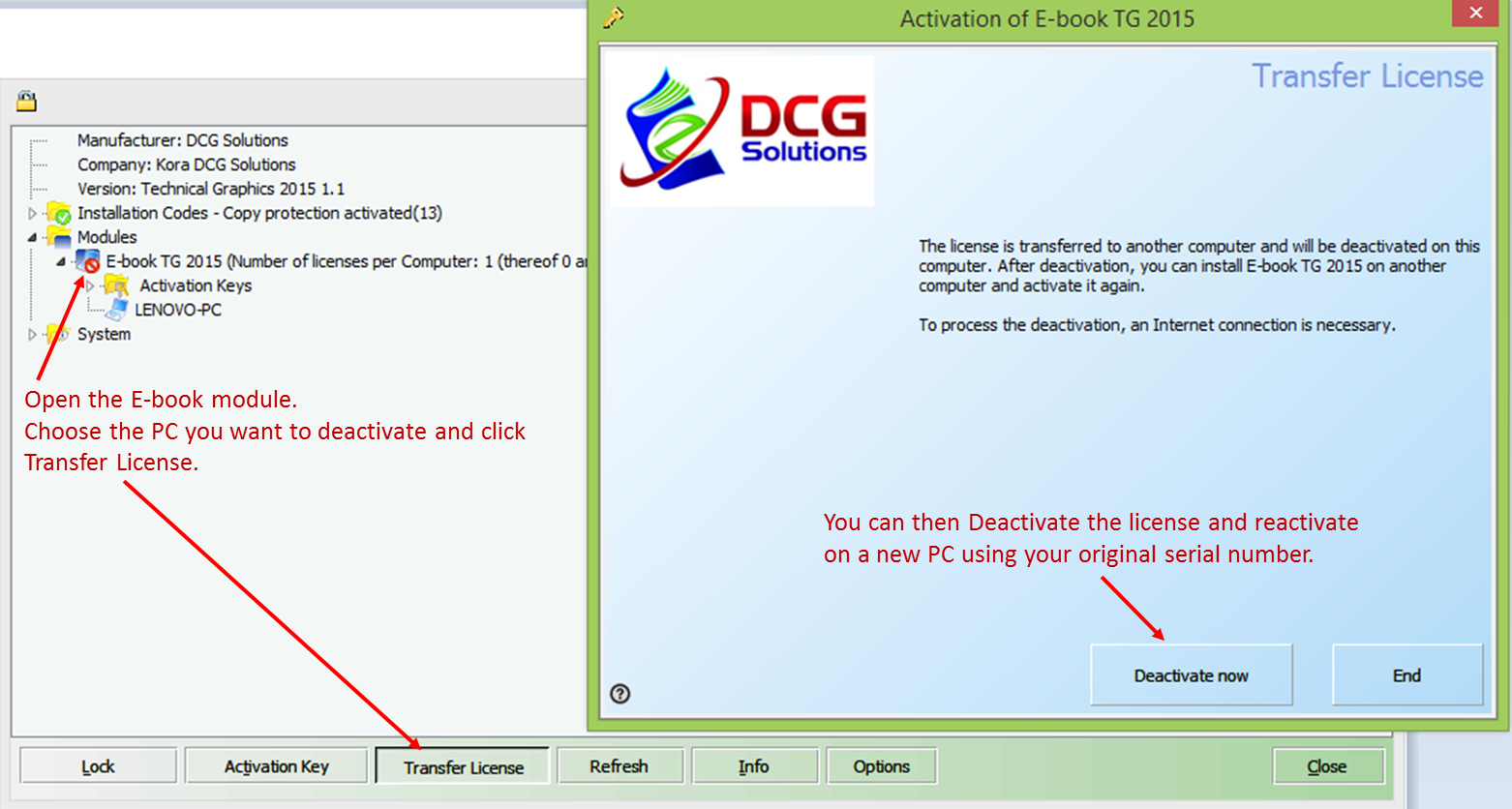
Run the e-book and press Ctrl + Alt + L to open the license information.
Open the E-book module.
Choose the PC you want to deactivate and click Transfer License.
You can then Deactivate the license and reactivate on a new PC using your original serial number.
This feature requires an online connection.
I bought my book before September 2015, how do I … Access the Online E-books? or Create an online Account?
The Online option wasn't available as standard for books sold before September 2015.
If you have a valid license you can access the online e-books.
Please email your Disc ID, Name, School and Teacher Name to
Frequently Asked Questions - Online E-books
How do I … Access the Online E-books? or Create an online Account?
T
To access the online E-books you must create an account using the Access Code provided on the first page of your workbook. See instruction with pictures here.
1) Select the link Subscribe to Online E-book this is on the top left of the page.
2) Register for the Student Package you have purchased; Plane and Descriptive Geometry, Applied Graphic or Technical Graphics. An online form will appear.
3) Enter your details on the form, the user name and password will be needed to access the online e-book so make note of these.
At the bottom of the form apply the coupon supplied on the first page of your book, press Enter, the charge will reduce to €0. No payment method is required if you have already purchased a book/coupon code.
Press/click the Complete Registration button at the bottom of the form.
4) Log in using the My Account button (top left) and the user name and password chosen.
5) A new link will appear on the top tab called Online E-books, use the dropdown menu from Online E-books to access the student packages and different chapters.
Note: Only one open session per user is permitted at a time, when leaving the site (or moving from one PC to another) please use the My Account button on the top left to log out.
If you forget to do this you will be able to log back in again after a period of inactivity.
I have already purchased a book but when I try to register for the online book I am asked for payment, do I have to pay again?
No, free access to the E-book is supplied with each purchase. Enter the access code provided and the first page of the book, press enter, the charge will reduce to €0. Click Process to complete the registration.
Click here for Instructions with Pictures or Printable PDF Instructions.
Where do I find the Access Coupon Code?
If you have bought a DCG or TG Solutions book an E-book Access Coupon Code can be found just inside the front cover of the book. If a code is not printed within your book please contact DCG Solutions quoting your Disc ID, the Disc Id is the number printed on the surface of the Disc.
My Access Code is covered by a label saying “Code Void Online Account created during purchase”
Did you purchase your book online at www.dcgsolutions.ie? If so than you most likely have an existing online e-book account. Search your email for an email from
Your Log in information will be on this email. Did someone else purchase the book for you? They may have received the registration email. Once you log in you can change the account details under Online E-books – Edit My Account
If you continue to have problem please email your Access Code and purchase information to
I have forgotten my log in information, how can I reset this?
- Your log in details would have been sent via email when you created the account, search your email for an email from
- Use the Forgot my Username and Forgot my Password Links under the Log in area
Your log in information will be sent to the email address associated with your User account, if no email is received please check your spam folders.
-If you have never received an email from dcgsolutions then please email
Some text/graphics are missing from my online E-book why?
If graphics or text appears to be missing on your device/computer you will have to update the internet browser or download a new one. The online E-books work on the latest versions of all commonly used internet browsers.
Frequently Asked Questions - Offline E-book Download
I can’t find the download link on My Account
Have you added the download option onto your account? Instruction here.
After you add the download option you must log out and back in to your account.
The download link will now be seen at the bottom of the Chapter List and on the Download Offline E-book Menu Option. Click this link to go to the download page.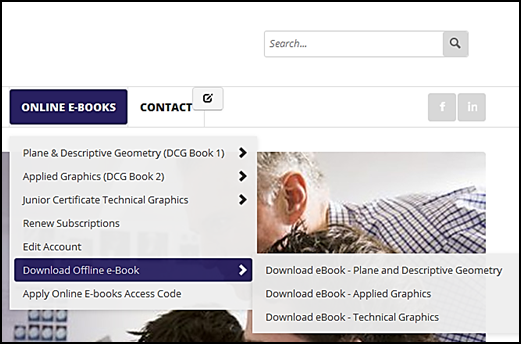
I have downloaded the offline E-book but no icon appears on my desktop?
The shortcuts will look like.
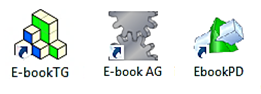
If no shortcut is created navigate to the E-Book folder in your Program Files (Computer - Windows C Drive - Program Files).
Right click on E-book.exe and create a short cut, this shortcut can be pasted onto the desktop.
Where is my serial number to activate the offline E-book download?
The serial number will be sent to the email address associated with the Online account.
Unsure what email address you have use? Click the Online E-books Tab and choose User Profile or Edit Account to check the email address used. You should also check any spam or junk folders.
If you still have not received the serial number please contact
Can I use the Offline ebook on a Mac/Table/I-pad?
Unfortunately the offline download version is windows specific and will not work on a Mac, Tablet or I-pad.
The online version will work on all Macs, Tablets and I-Pads
I can’t find the E-book after is has downloaded onto my PC, where is it?
After the download did you choose to Save or Run the E-book?
If you saved the E-book the SetUp.exe file will be in your download folder. (SetUpAG, SetUpPD or SetUpTG)
If you ran the E-book; Check has a desktop icon been created, shown below.
If no shortcut is created navigate to the E-Book folder in your Program Files (Computer - Windows C Drive - Program Files).
Right click on E-book.exe and create a shortcut, this shortcut can be pasted onto the desktop.
Frequently Asked Questions - Disc E-book
My E-book will not load, why?
If you are running windows 8, right click and choose 'run as administration'
After registration allow a few moments for the E-book to launch, on some PC’s the E-book may take up to one minute to load, please be patient.
Must I run the E-book from the disc all the time?
No, copy and paste the E-bookTG.exe file from the disc onto your computer for easier access, be sure to save the disc in a safe place for future installments if necessary.
{slider I inserted the disc but nothing happened. What should I do?}
A: Open the DVD/CD drive from Computer/My Computer.
Right Click the DVD drive, from the options that appear choose “open”.
We want to open the disc so all files can be seen. Right Click the E-BookTG.exe file
(this might be viewed as E-bookTG only on some computers). A grey list of options will appear, choose “open”.
If this does not work please the notes below on Anti Virus Software.
I registered and used my E-book but now I get a message saying it has expired, why?
The E-book is used in conjunction with the workbook and is designed to operate for the Junior Certificate Cycle, it will expire after three years. If you get this message before your disc was due to expire please check that your that system time and date are correct. Changing the system date will cause the E-book to expire.
I have registered and used my E-book but now when I open the program I get a message asking me to register, why?
System Restores and a limited number of system updates may reverse the registration process, just follow the registration instruction to re-register. If this problem persists ensure you have followed all instructions for managing exceptions on antivirus programs.
Error Messages
I have entered my serial number but a message appear saying “The Serial Number cannot be applied. The Activation Key was already used. Request a new license”.
Each serial number can only be used once. If you have previously used the serial number on another PC then follow the instruction on How to Transfer a License.(In the How to sections at the top of the page)
If you used the serial number but there was a problem with the installation then please contact
Online activation failed. An online connection could not be established….
Certain firewall settings can block the online activation. If online activation fails, you can allow the program through the firewall or choose email activation.
Go Back and choose Email Activation; enter your name and email, use the serial number supplied to your email address.
Click Next to activate the E-book.
Registration details will be copied to the clipboard, paste these into an email and send to
Online Activation is instant, please allow up to 2 working days for replies to email activation.
Internet Explorer Users may get warning ‘This file is not commonly downloaded and may harm your computer’
All our e-book downloads are digitally signed and verified using Microsoft Authenticode, this message is only appearing because the download is a new feature on our website so has not been downloaded by many users.
When the message appears; go to Actions and select the More Options.
Choose Run Anyway.
You can also use an alternative Internet Browser
There was a problem launching Office. Please close all applications and try again
Save any on-going work and shut down all PowerPoint applications.
Open the Task Manager (Press Ctrl + Alt + Delete). Ensure no Microsoft PowerPoint Applications and Processes are running.
Click Name to sort alphabetically and look for any cases of the power point viewer; Microsoft PowerPoint.exe. PowerPointViewer.exe, PTT or PPTS. End the Process
You should also restart the PC. Once the restart is complete launch the E-book again.
If the problem persists contact
When I enter the Download Code a message appears saying Code Void.
If you have purchased multiple products ensure you are using the correct access code for the corresponding book.
Ensure you are entering the correct access code as some characters can be easily misread such as the capital letter O and the number zero 0.
Most Download Codes start with three letters, followed by one number, followed by numbers.
PDD1-12345, TGD1-12345, AGD1-12345
When I enter the Online Access Code a message appears saying Code Void
If you have purchased multiple products ensure you are using the correct access code for the corresponding book.
Ensure you are entering the correct access code as some characters can be easily misread such as the capital letter O and the number zero 0.
Most Online Access Codes start with two letters, followed by one number, followed by capital letters.
PD1-SAMPLE, TG1-SAMPLE, AG1-SAMPLE
Most Download Codes start with three letters, followed by one number, followed by numbers.
PDD1-12345, TGD1-12345, AGD1-12345
Did you purchase your book online at www.dcgsolutions.ie? If so than you most likely have an existing online e-book account and the code will not work. Search your email for an email from
If you continue to have problem please email your Access Code and purchase information to
Warning: Username and Password do not match or you do not have an account yet.
Each user chooses a username and password when setting up an account, these are case sensitive and needed to log in to your account.
- Your log in details would have been sent via email when you created the account, search your email for an email from
- Use the Forgot my Username and Forgot my Password Links under the Log in area
Your log in information will be sent to the email address associated with your User account, if no email is received please check your spam folders.
- If you have never received an email from dcgsolutions then please email
- If you have received the registration email and still cannot log in please email
Notice: You are not allowed to have multiple log-ins with the same user name...
Only one open session per user is permitted at a time, when leaving the site (or moving from one PC to another) please use the My Account button on the top left to log out.
If you forget to do this you will be able to log back in again after a period of inactivity.
Shutting down your internet without logging out leaves the session open, so where possible Log out before you close the internet.



 Seafield, Quilty